What this article covers: How to connect your claim form to ClaimScore via API so that claims are scored in real time as they are submitted.
What is Real-Time Analysis?
When claimants submit through an online claim form, ClaimScore can score each claim the moment it arrives — before it ever hits your case management system. This is the real-time path.
To enable this, your claim form (or the system that powers it) needs to send each submission to ClaimScore via API. This requires:
An API key to authenticate your requests
Optionally, a webhook so ClaimScore can notify your system when a score is ready
All of this is managed in Developer Tools.
How to Get There
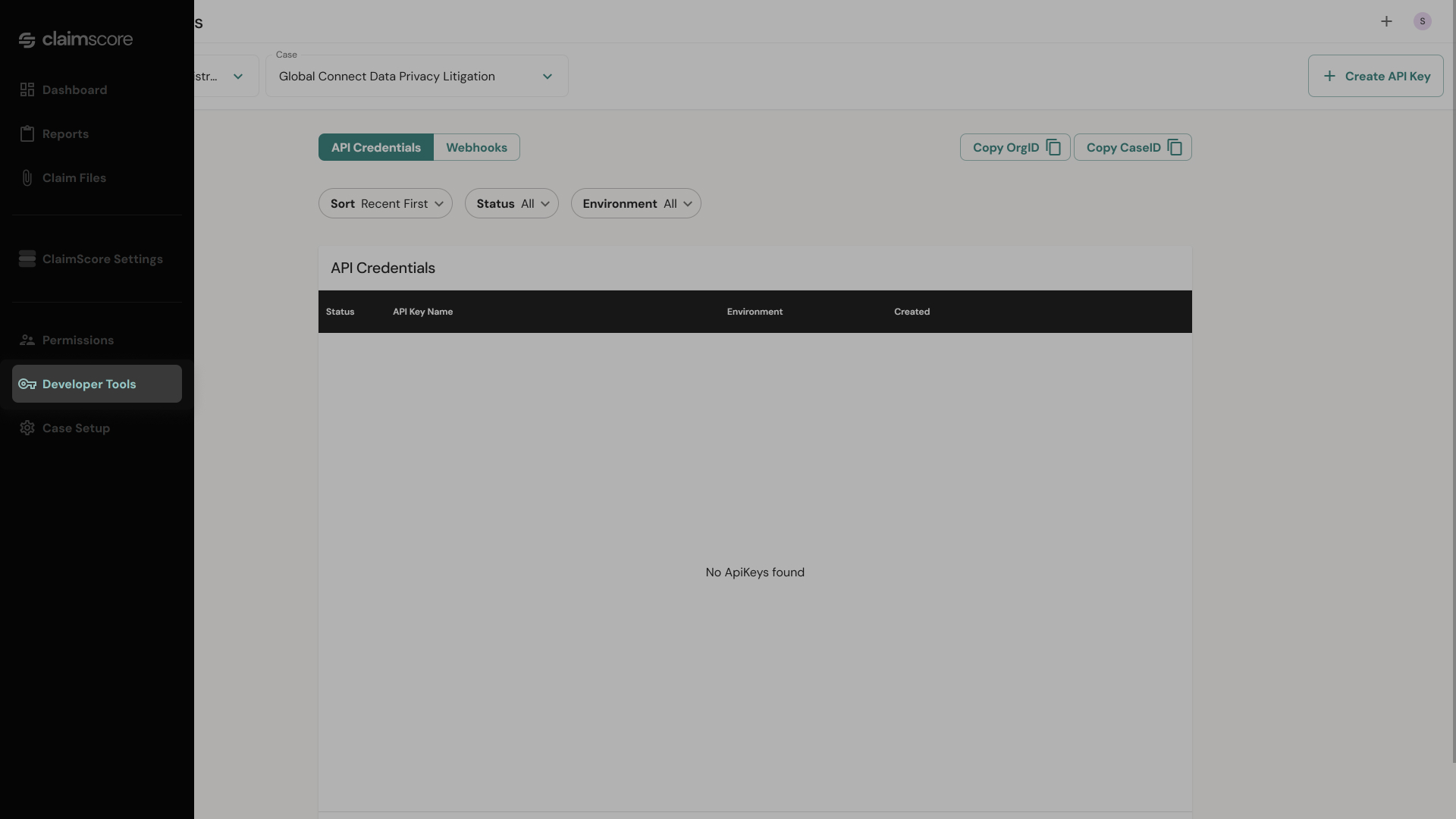
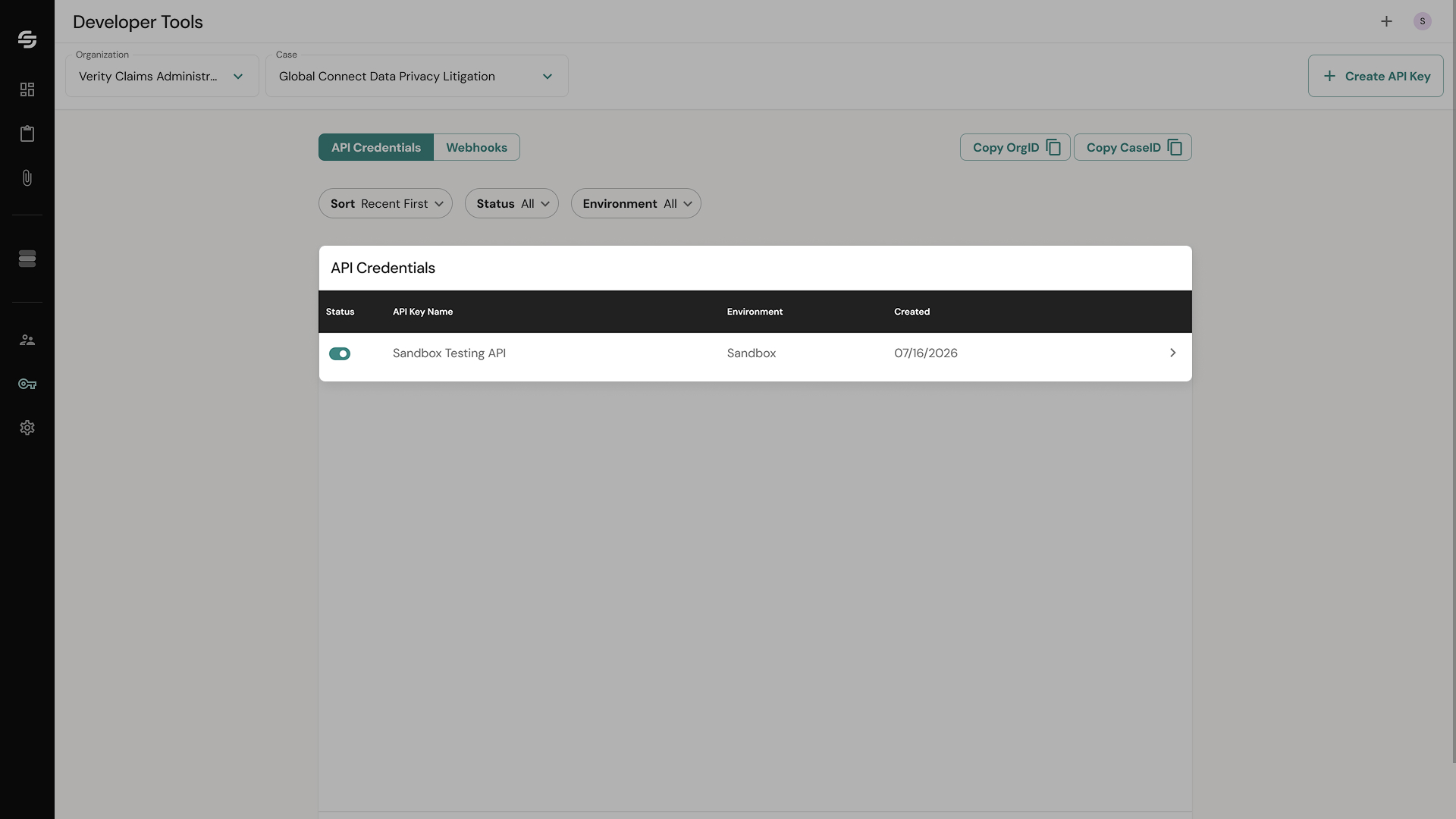
From the left sidebar, click Developer Tools. The page has two tabs at the top:
API Credentials — for managing API keys
Webhooks — for managing webhook endpoints
Part 1: Creating an API Key
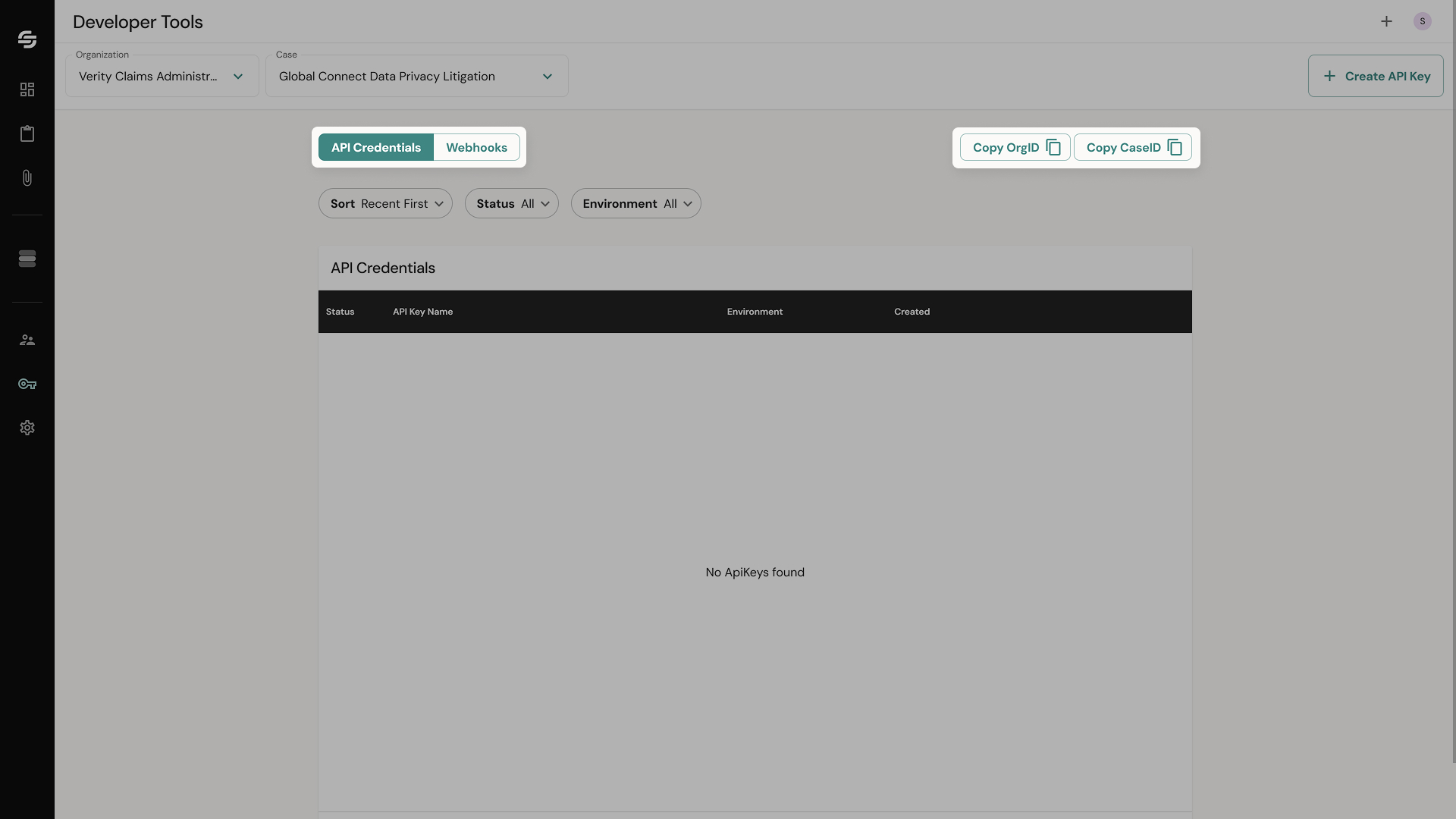
Step 1 — Go to the API Credentials tab
Click the API Credentials tab if it isn't already selected. You'll see a table listing any existing API keys with columns for: Status, API Key Name, and Environment (Production or Sandbox).
At the top of the page you'll also see two useful copy buttons: Copy OrgID and Copy CaseID. These identifiers are required when configuring your API integration and are specific to your organization and case.
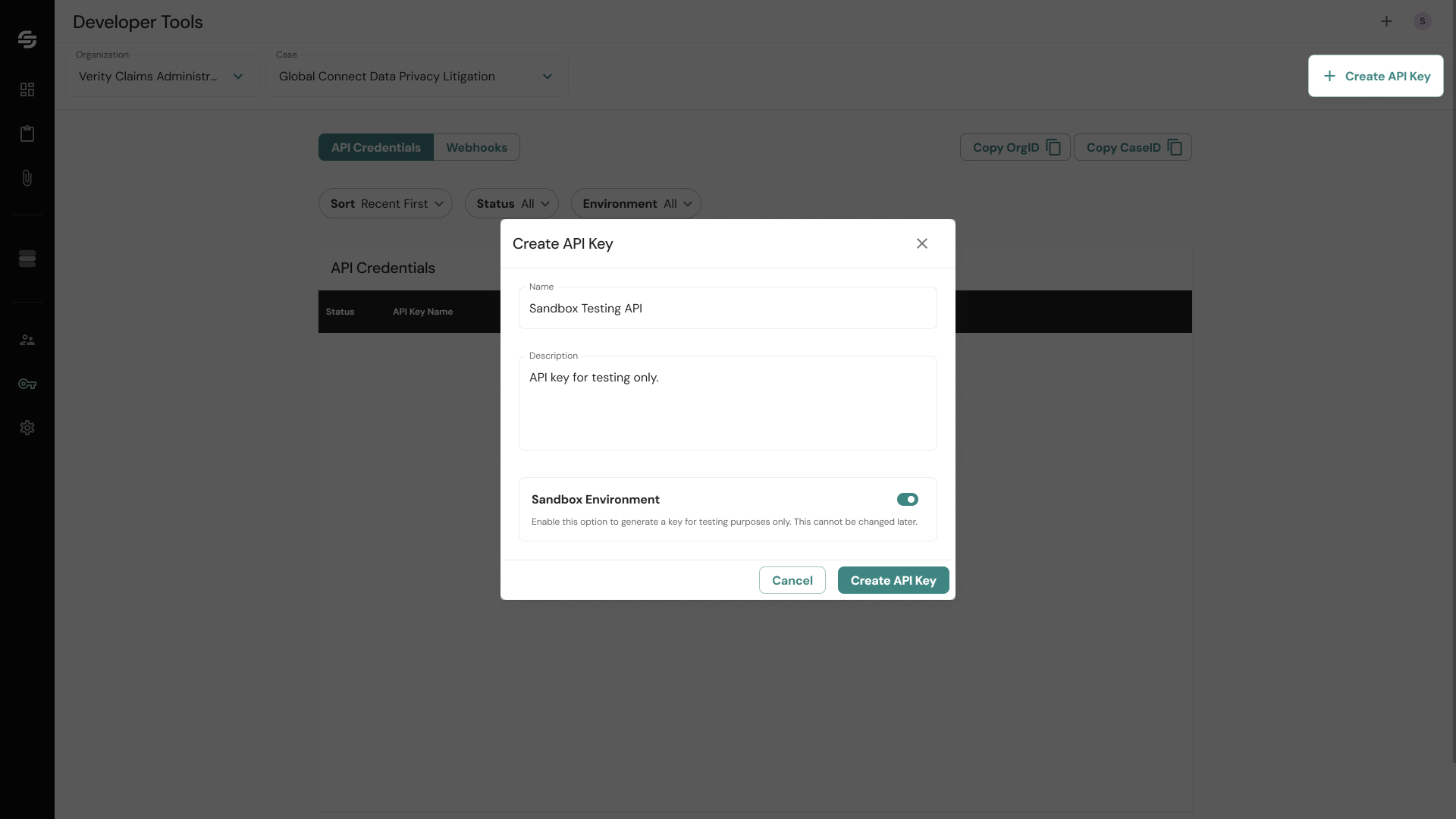
Step 2 — Create a new key
Click the Create API Key button (or equivalent action button on the page). A creation form will appear asking for:
Name — Give the key a descriptive name, e.g., "Production Claim Form" or "Sandbox Testing."
Description — Optional, but useful for identifying the key's purpose later.
Environment — Toggle Sandbox on or off to switch between testing and production environments.
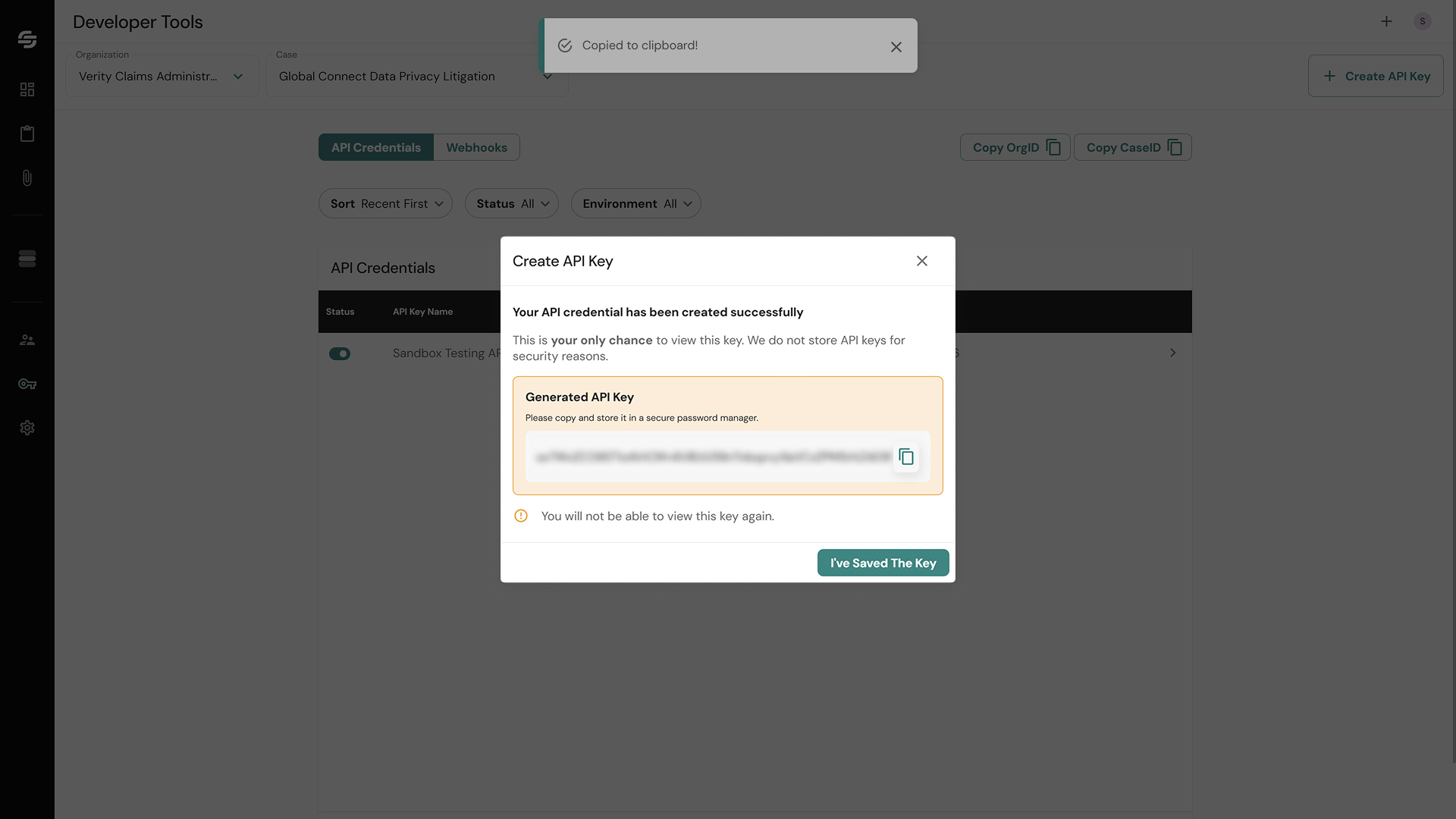
Step 3 — Save your key immediately
After creating the key, a confirmation dialog appears:
"Your API credential has been created successfully."
The generated key is displayed highlighted in orange with a copy button.
⚠️ Critical: This is the only time you will ever see this key. ClaimScore does not store it after this screen. Copy it immediately and store it securely — in a password manager or your organization's secrets vault. If you close this dialog without copying the key, you will need to create a new one.
Click "I've Saved The Key" to dismiss the dialog.
Step 4 — View and manage your keys
Back on the API Credentials tab, your new key appears in the table. Click any row to open the details drawer on the right, which shows:
Key Name and Description
Environment
Date created
Status toggle — You can deactivate a key without deleting it. This is useful if you suspect a key has been compromised.
From the drawer you can also Edit the name/description or Delete the key permanently.
Part 2: Setting Up a Webhook (Optional)
A webhook allows ClaimScore to push scoring results back to your system automatically when a claim is scored, rather than requiring your system to poll for results.
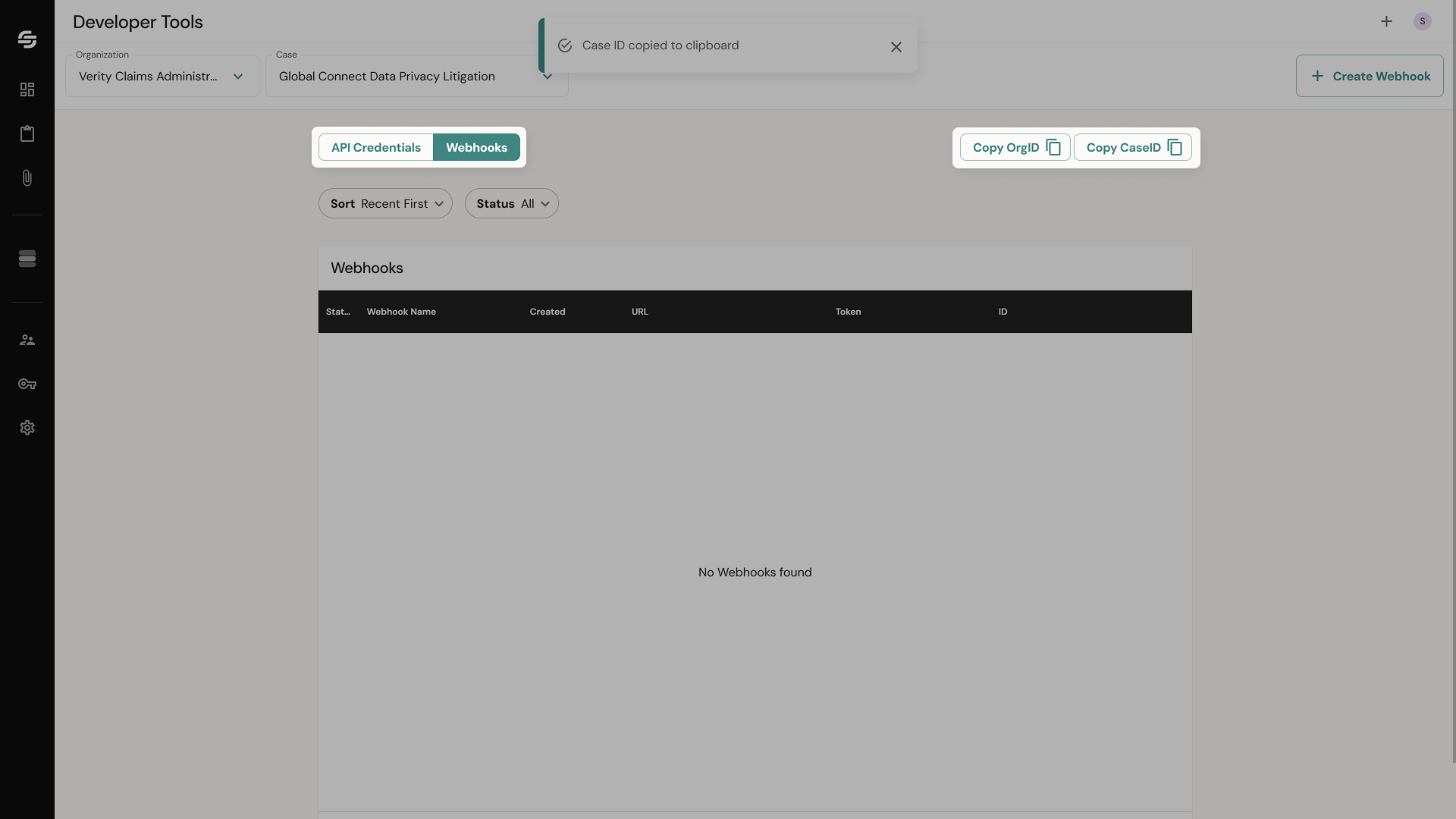
Step 1 — Go to the Webhooks tab
Click the Webhooks tab at the top of the Developer Tools page. The table shows existing webhooks with columns for: Status, Webhook Name, Created date, URL, Token, and ID.
At the top of the page you'll also see two useful copy buttons: Copy OrgID and Copy CaseID. These identifiers are required when configuring your API integration and are specific to your organization and case.
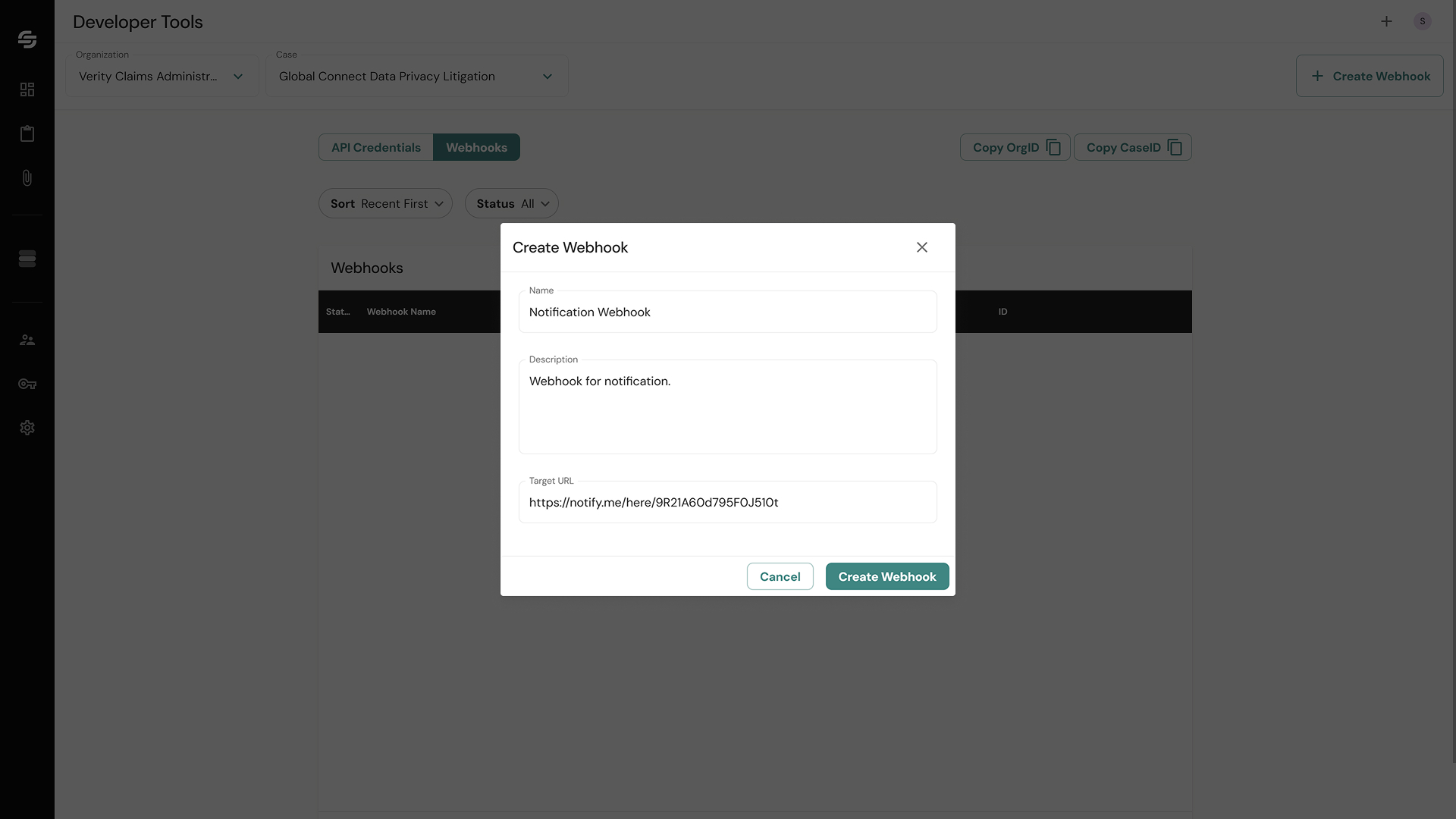
Step 2 — Create a webhook
Click Create Webhook. Fill in:
Webhook Name — Give the webhook a descriptive name, e.g., "ACME Industries Claim Validation".
Description — Optional, but useful for identifying the webhook’s purpose later.
URL — The endpoint on your system that ClaimScore will POST results to.
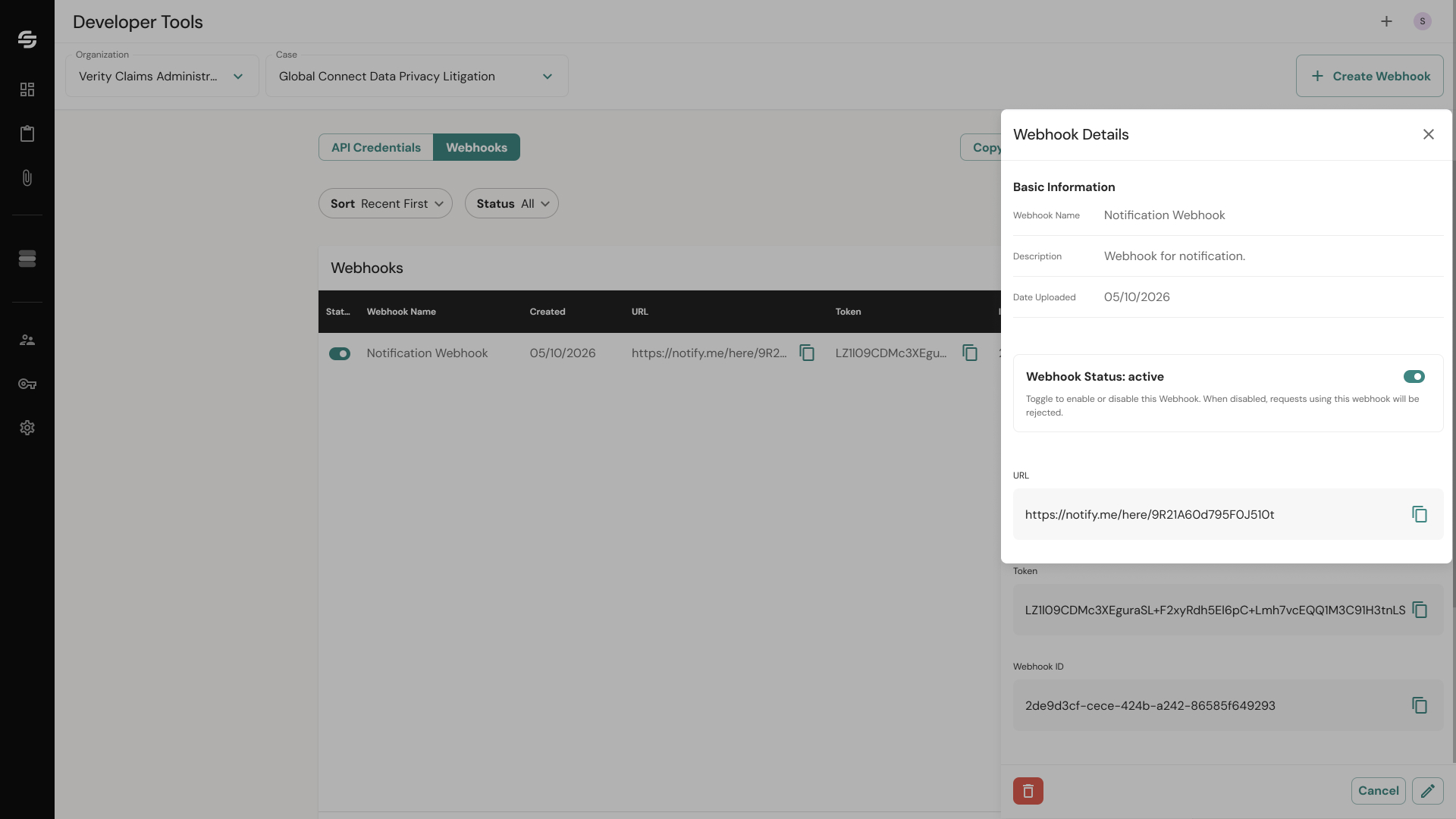
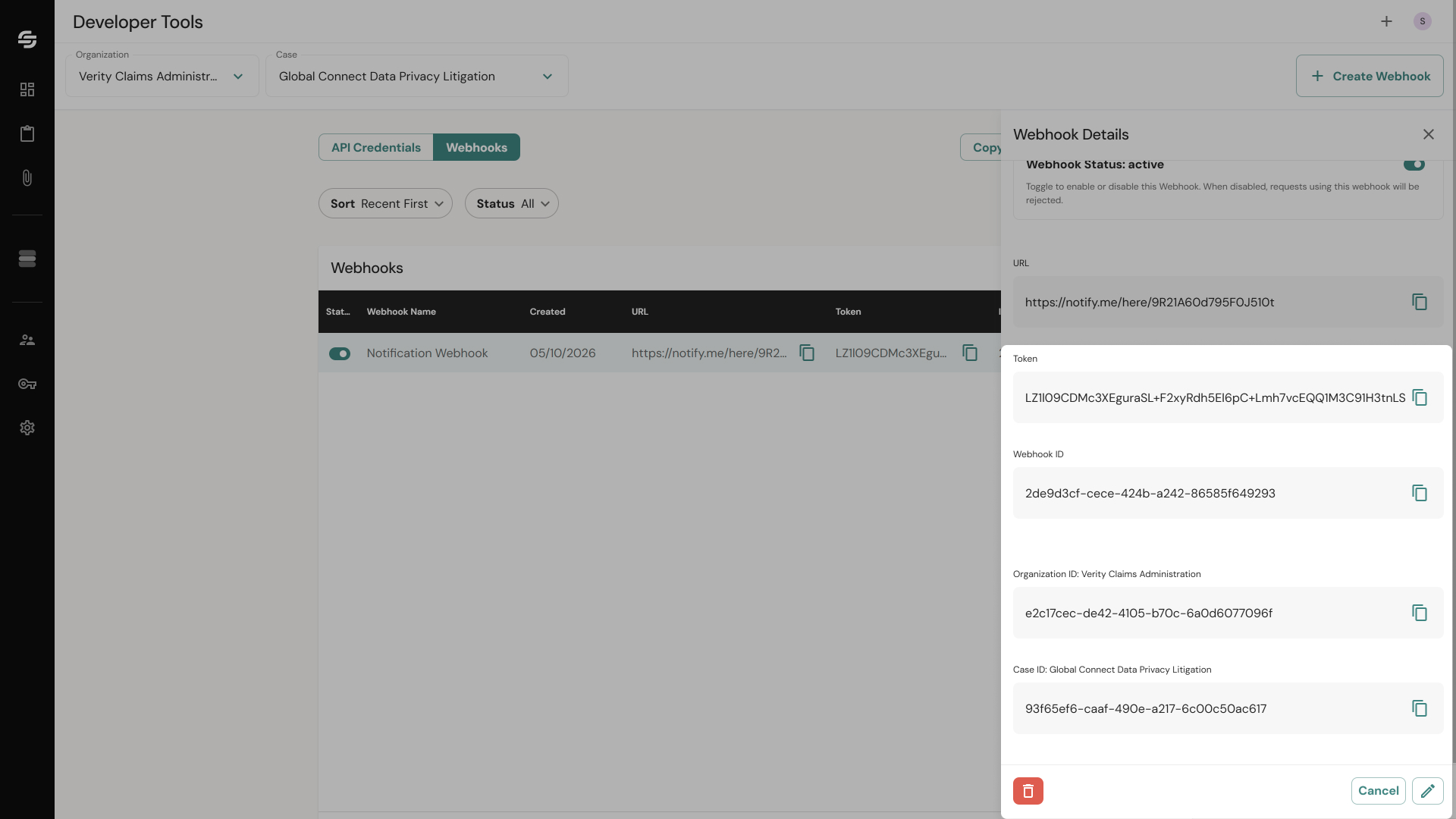
Step 3 — Review webhook details
After creation, click the webhook row to open the details drawer. The drawer shows two sections:
Top section:
Webhook Name and Description
Date created
Status toggle — Enable or disable the webhook
URL with a copy button
Bottom section:
Token — A secret token your system can use to verify that incoming requests actually came from ClaimScore. Copy and store this securely.
Webhook ID — The unique identifier for this webhook.
Organization ID — Your org's UUID. Required in API calls.
Case ID — The current case's UUID. Required in API calls.
All four values have individual copy buttons.
What Your Developer Needs
Pass the following to whoever is integrating the claim form:
API Key (copied at creation time)
Organization ID (from the Webhooks tab or Copy OrgID button)
Case ID (from the Webhooks tab or Copy CaseID button)
Webhook URL and Token (if using webhooks)
For the full API reference, visit the ClaimScore API documentation.
What Happens Next
Once the API is connected and claims are flowing in, you can monitor scores and results in the dashboard. See: 6. ClaimScore Dashboard Quickstart


.png)


